Captions for faceless shorts, without typing a word
You commented CAPTIONS — here's the tool and the 3-step setup. Captioning a 30-second short by hand takes me 10+ minutes. In Submagic, the captions were ready in about 16 seconds.

Affiliate disclosure: this page contains affiliate links. If you sign up for a paid plan through them, we earn a commission.
In this guide · 8 sections
01Who this is for
You make shorts without showing your face or using your own voice. The video is done, but the captions aren't — and typing them line by line, then timing every word, takes 10+ minutes for a 30-second short. So the post slips to tomorrow. Then the day after.
If that's you, this page is the setup that gets captions off your plate.
02What you'll end up with
Word-by-word captions in a bold style, with highlighted words and emojis, burned into your short — one MP4 you can post to TikTok, Shorts and Reels.

03What you need
- One vertical video (9:16). On the Starter plan, clips can be up to 2 minutes.
- A Submagic account. The trial starts without a credit card.
04Step 1: Drop in your video
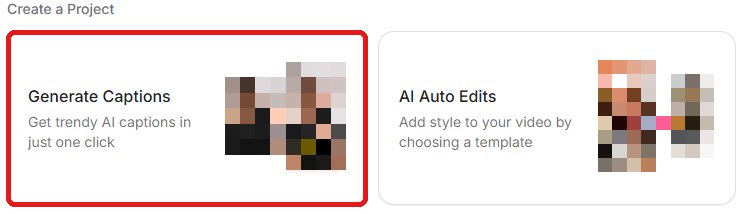
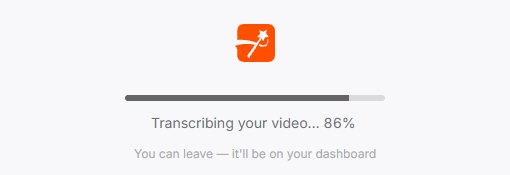
On the Home screen, click Generate Captions and drop in your video. Then wait — on our 26-second short, it took about 16 seconds.
05Step 2: Pick a style
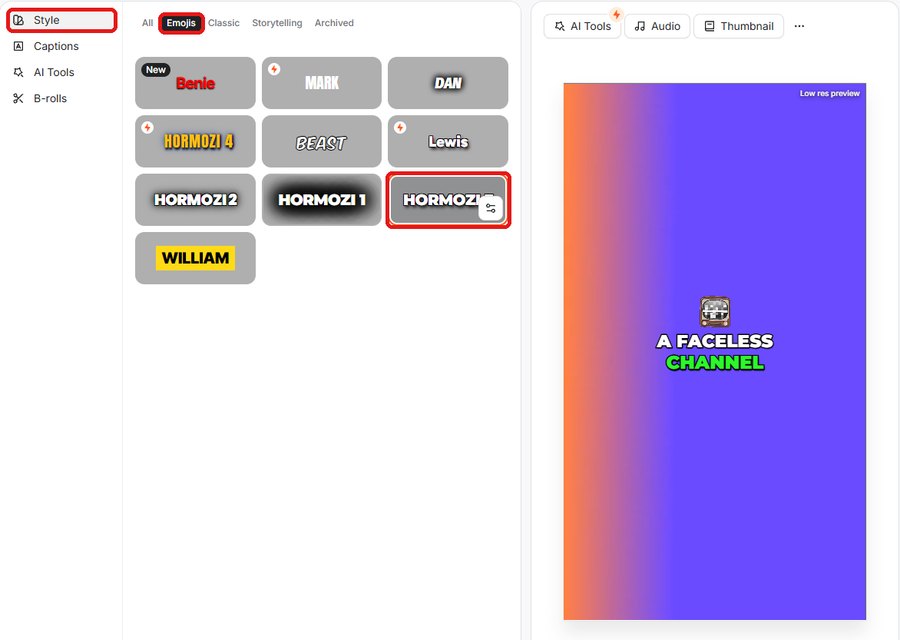
Open Style and click any template — the whole video changes in one click. The Emojis tab adds an emoji above key words. Templates with a lightning icon appeared to be paid ones; the pricing page lists premium caption templates on Pro.
06Step 3: Fix any word
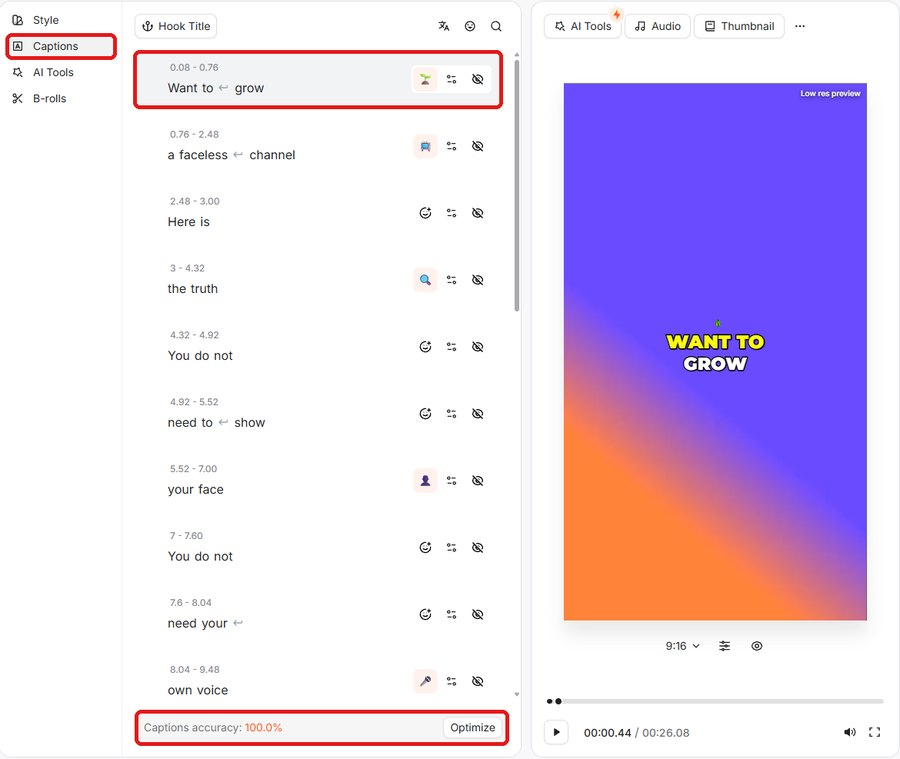
Open Captions and read down the list. Click a line to fix a word — check names, slang and numbers. On our clear text-to-speech test clip, Submagic showed "Captions accuracy: 100.0%" and we had nothing to fix; a real voice or noisy audio may need a few edits.
07Where people get stuck
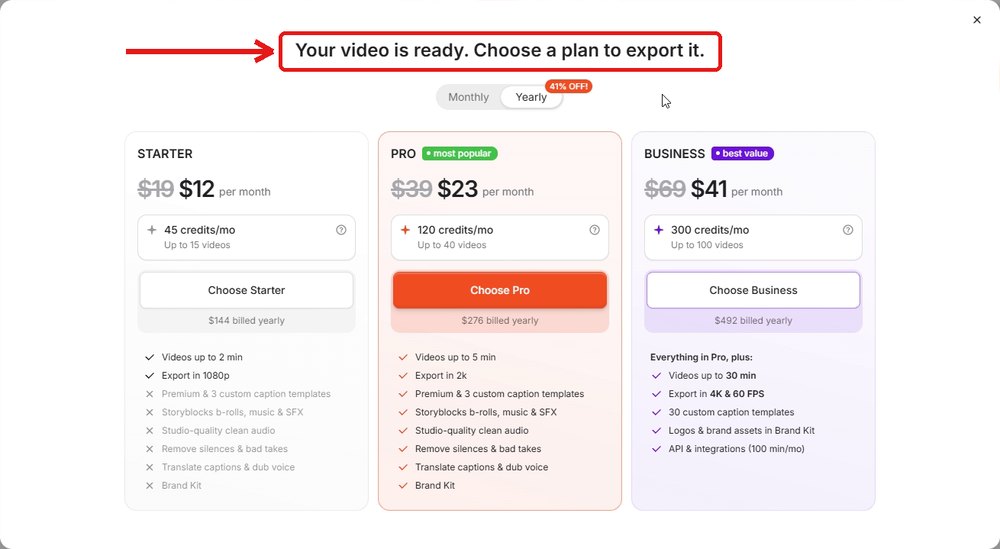
- The trial can't export (on our account). Every time we pressed Export, Submagic showed "Your video is ready. Choose a plan to export it." The help center says the trial includes 3 short videos and that a subscription removes the watermark; we never got a file at all. What we saw, in detail.
- 2-minute limit on Starter. Fine for shorts; longer clips need Pro (5 minutes).
- Premium styles are Pro. If the look you love has the lightning icon, budget for Pro.
- No refunds. Submagic's help center says it doesn't offer refunds — so use the trial to check captions on one of your real clips before paying.
08Start here
Try it on one real short first. If the captions look right and you'll keep posting, pick the plan by how often you post:
- Up to 3–4 shorts a week: Starter — $19/month, or $12/month billed yearly. About 15 videos a month, up to 2 minutes, 1080p, no watermark.
- Daily, or you want premium styles: Pro — $39/month, or $23/month billed yearly. About 40 videos a month, up to 5 minutes.
Each upload uses 3 credits; captions themselves are free, and exporting doesn't use credits (Submagic's credit table). Not sure yet? Pay monthly for the first month — Submagic doesn't refund, and yearly means paying for 12 months up front.
Try Submagic free on one of your shorts →No credit card to start · watermark-free export from StarterWe tested only the free trial (one 26-second test short) and haven't paid for Submagic. Prices and limits are from Submagic's pricing page and help center, checked November 6, 2026.
FAQ
Q. Is Submagic free?
You can try it free without a credit card. Submagic's help center says the trial lets you upload 3 short videos and edit them; our trial account started with 15 credits, and each upload used 3. On our account the trial couldn't export — Export opened a plan picker — so plan on a paid plan if you need the file.
Q. How long does Submagic take to caption a short?
On our 26-second test short, the editor with captions was ready about 16 seconds after we dropped the file in (November 5, 2026). Longer videos may take longer.
Q. Which plan do I need for shorts?
Starter covers clips up to 2 minutes, about 15 videos a month, 1080p, no watermark: $19/month or $12/month billed yearly. Pro ($39, or $23 billed yearly) adds premium caption templates, 5-minute clips and about 40 videos a month.
Q. Can I get a refund if it isn't right for me?
No. Submagic's help center says it doesn't offer refunds, so test the captions on one of your real clips during the free trial first.
Read next
Submagic free trial: can you export without a watermark? What we saw (2026)We tried Submagic's free trial: captions and preview worked, but every Export opened a 'Choose a plan to export it' screen. Here's what the help center says, the cheapest watermark-free plan ($12/month billed yearly), and what to test before you pay — there are no refunds.9 free alternatives to paid tools for faceless shorts (2026)Jasper, ElevenLabs, Submagic, OpusClip, Storyblocks, Premiere, Later, Camtasia and Canva Pro all have a free swap. Here's each paid price (US, checked November 6, 2026), the free alternative, and the real limit of the free version.CapCut auto captions now need Pro? What we saw, what it costs, and your options (2026)On CapCut desktop, the auto captions Generate button now carries a Pro badge, and CapCut's help says projects with Pro features need Pro to export. Free exports also keep a CapCut watermark — the Remove watermark switch is Pro. Pro is $19.99/month. Here are the free in-app caption tools on TikTok, YouTube and Instagram, and when a caption-only tool like Submagic costs less.- Submagic pricing
- Submagic: Does Submagic have a Free Trial
- Submagic: How Many Credits Does Each Feature Cost?
- Submagic: Size and Video Length Limit
- Submagic: Do you have a refund policy?
Tested on Submagic's free trial on November 5, 2026 (one 26-second faceless test short with a text-to-speech voice). Prices and plan limits checked on Submagic's pricing page and help center on November 6, 2026. The "10+ minutes by hand" is from our own experience captioning shorts. We haven't paid for Submagic, so we haven't seen a paid export ourselves.